PowerPoint presentations are often created as separate files, especially for business meetings, school projects, team collaborations, and client reports. Managing multiple presentations can be confusing and time-consuming. When you merge PowerPoint files into one presentation, your slides stay organized, making the final deck easier to edit, share, and present.
There are several ways to combine PowerPoint presentations, including using PowerPoint’s built-in features or an online PPT merger. The right method can help preserve slide layouts, themes, fonts, images, and other formatting while creating a single editable PPTX file.
In this step-by-step guide, you’ll learn the easiest ways to merge PowerPoint files without losing formatting. You’ll also discover useful tips, common mistakes to avoid, and the best method to combine presentations quickly and efficiently.
Things to Check Before Merging PowerPoint Files
Before you merge PowerPoint files, take a few minutes to prepare your presentations. A quick review can help you avoid formatting issues, missing content, and extra editing later. Here are the most important things to check before combining your PPT or PPTX files.
Check Slide Size
Make sure all presentations use the same slide size, such as 16:9 or 4:3. Different slide dimensions can cause content to appear stretched, cropped, or out of place after merging.
Review Themes and Layouts
If your presentations use different themes or slide layouts, the merged file may look inconsistent. Using a similar design across all files creates a cleaner and more professional presentation.
Verify Fonts
Check that the same fonts are available in every presentation. Missing fonts may be replaced automatically, which can change the appearance of your slides.
Review Images, Charts, and Media
Confirm that images, charts, icons, videos, and audio files display correctly before merging. This helps ensure all visual content remains intact in the final presentation.
Arrange the Presentation Order
Decide the order of your presentations before merging. Placing files in the correct sequence saves time and reduces the need to rearrange slides afterward.
Keep a Backup Copy
Save a copy of each original PowerPoint file before you begin. If anything doesn’t merge as expected, you can quickly restore your presentations and try again.
Method 1: Merge PowerPoint Files Using Reuse Slides
If you have Microsoft PowerPoint installed, the Reuse Slides feature is a reliable way to merge PowerPoint files while keeping your presentations editable. It lets you insert slides from another PPT or PPTX file into your current presentation. You can also choose whether to keep the original formatting or apply the destination presentation’s theme.
Step 1: Open the Destination Presentation: Open the PowerPoint presentation where you want to add slides from another file.

Step 2: Open the Reuse Slides Panel: Go to the Home tab, click the arrow below New Slide, and select Reuse Slides.

Step 3: Browse and Select the PowerPoint File: In the Reuse Slides panel, click Browse and choose the PPT or PPTX file you want to merge.

Step 4: Insert the Slides: Click the slides you want to add, or choose Insert All Slides to import the entire presentation.

Step 5: Keep the Original Formatting (Optional): Enable Keep Source Formatting if you want the imported slides to retain their original theme, fonts, colors, and layouts.

Method 2: Copy and Paste Slides Between Presentations
If you only need to merge a few slides, the copy-and-paste method is a simple option. It works well for small presentations, but it may require extra formatting adjustments if the presentations use different themes, fonts, or layouts.
Step 1: Open Both PowerPoint Presentations: Open the source and destination presentations in separate PowerPoint windows.
Step 2: Copy the Required Slides: Select the slide or slides you want to move, then right-click and select Copy or press Ctrl + C (Windows) or Command + C (Mac).

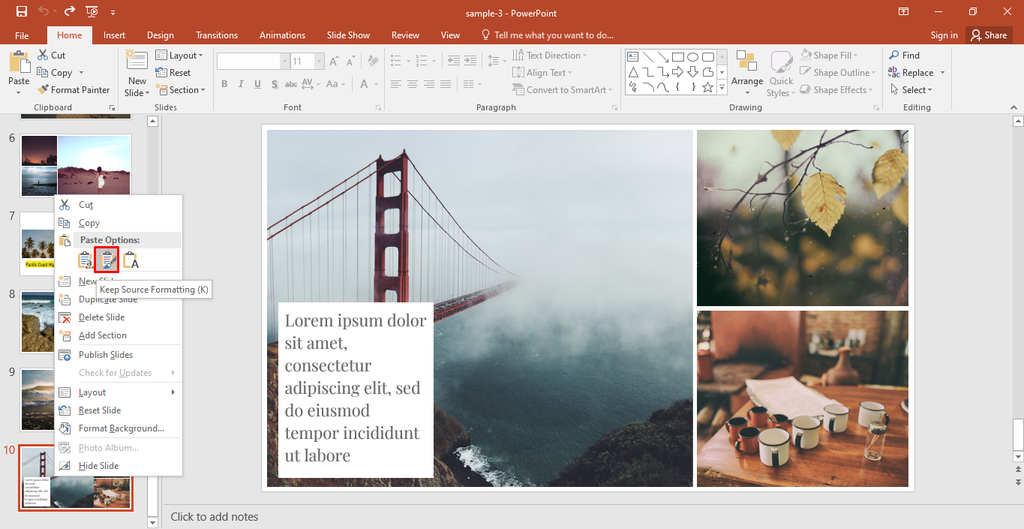
Step 3: Paste the Slides: Go to the destination presentation, right-click where you want to insert the slides, and select Paste, or press Ctrl + V (Windows) or Command + V (Mac). Then choose Keep Source Formatting to preserve the original design or Use Destination Theme to match the destination presentation.
Method 3: Merge PowerPoint Files Using an Online PPT Merger (Fastest Method)
Using an online PPT merger is one of the fastest and easiest ways to merge multiple PowerPoint presentations into a single editable PPTX file. It works directly in your web browser, so there’s no need to install Microsoft PowerPoint. Simply upload your files, arrange them in the desired order, and merge them in just a few clicks by following the steps below.
Step 1: Upload Your PowerPoint Files: Click the “Browse Files” button or drag and drop your PPTX files into the tool.

Step 2: Arrange the Files or Slides: Choose Arrange Files to reorder the uploaded PowerPoint files before merging.

Choose Arrange Slides to preview and rearrange individual slides before creating the merged presentation.

Step 3: Merge PowerPoint File: Click the Merge PPT File button to combine your presentations.

Step 4: Download Merged PowerPoint Slides: Once the process is complete, click “Download Merged PPTX” to save the merged PPTX file to your device.

Which Method Is Best?
The best way to merge PowerPoint files depends on your needs. If you want to merge multiple PPT files quickly while preserving original formatting, then an online PPT merger is the best choice. If you’re working in Microsoft PowerPoint and need more control over your presentation, the Reuse Slides feature is a reliable option. For merging only a few slides, the copy-and-paste method works well.
| Method | Best For |
| Reuse Slides | Adding slides to an existing presentation with control over formatting and slide placement. |
| Copy and Paste | Moving a few slides between presentations without merging entire files. |
| PPT Merger | Fast, secure, and best for merging multiple PPT or PPTX files while preserving formatting. |
Also, explore the tips for combining PowerPoint Presentations without losing formatting.
Conclusion
Merging PowerPoint files is an easy way to keep your presentations organized and improve your workflow. Whether you use an online PPT merger, the Reuse Slides feature, or the copy-and-paste method, the right approach depends on how many presentations you want to combine and the level of control you need.
Before merging, remember to check slide sizes, themes, fonts, and presentation order to avoid formatting issues. By following the steps in this guide, you can merge multiple PowerPoint files into a single editable PPTX presentation while keeping your slides organized, professional, and ready to share.