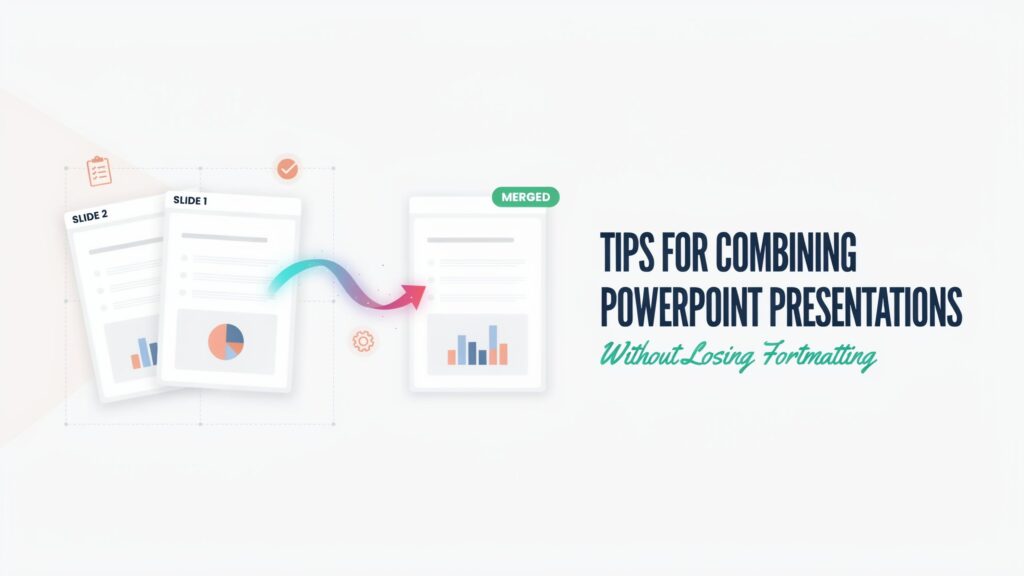
Combining PowerPoint presentations can save time when you need to bring slides from different files into one presentation. A PPT Merger can make this process easier when you need to combine multiple PowerPoint files into one presentation. It is useful for group projects, business reports, class assignments, and team presentations. However, combining files does not always produce a perfect result.
Fonts may change, colors can look different, and slide layouts may shift. Images, charts, animations, and transitions can also behave differently after slides are brought together. These problems usually happen because the original presentations use different themes, fonts, slide sizes, or design settings.
Understanding these common problems can help you identify what went wrong and fix the presentation before you share or present it.
Table of Contents
Why Do Problems Happen When Combining PowerPoint Presentations?
PowerPoint presentations can be created with different design settings. One file may use a different theme, font, slide size, or Slide Master than another. When slides from these files are combined, PowerPoint has to bring different formatting and presentation elements together.
For example, a presentation created with a widescreen layout may not match a presentation using a standard slide size. Similarly, a slide using a custom font may look different on another computer if that font is unavailable.
The more differences there are between the original files, the more likely you are to notice formatting or layout problems after combining them.
Common Problems When Combining PowerPoint Presentations
1. Fonts and Text Formatting Change
One of the most noticeable problems is a change in fonts or text formatting. A slide may look fine in its original presentation but appear different after it is combined with another file.
This can happen when the presentations use different fonts, font sizes, or text styles. If a particular font is not available, PowerPoint may replace it with another font. This can also cause text to wrap differently or move outside its original area.
How to fix it:
Check the fonts used throughout the combined presentation. If necessary, replace unavailable fonts with a consistent font that works across the entire file.
2. Themes and Colors Look Different
Each PowerPoint file can have its own theme, including colors, fonts, backgrounds, and effects. When slides from different presentations are combined, one presentation’s theme may affect how another slide looks. You may notice that background colors, headings, or other design elements no longer match.
How to fix it:
Review the theme of the final presentation and check important slides individually. If consistency is important, apply a suitable theme and adjust any slides that look out of place.
Also, explore the tips for combining PowerPoint Presentations without losing formatting.
3. Slide Layouts and Objects Move
Text boxes, images, shapes, tables, and other objects may shift when slides are combined. This is especially noticeable when the original slide was designed using a different layout or Slide Master. An object that was perfectly positioned in the original presentation may appear slightly moved or resized in the combined file.
How to fix it:
Check the layout of affected slides and compare them with the original files. Move or resize objects where necessary and make sure important content fits correctly within the slide.
4. Different Slide Sizes Cause Scaling Problems
PowerPoint presentations can use different slide dimensions, such as Standard or Widescreen. Combining presentations with different slide sizes can cause content to scale or appear misaligned. Images, text boxes, and other elements may not fit the new slide dimensions exactly as they did before.
How to fix it:
Check the slide size before combining presentations. If possible, use the same slide dimensions for all source files. After combining them, review slides for scaling or alignment problems.
5. Images, Charts, and Other Visuals Look Different
Visual elements can also be affected when presentations are combined. Images may change size, charts may have different formatting, and some objects may not appear exactly as they did in the original file.
This can be caused by differences in themes, fonts, image settings, or the way the objects were created.
How to fix it:
Review important images, charts, tables, and shapes after combining the presentations. Resize or reformat them if needed, and make sure they are clear and properly positioned.
6. Animations and Transitions Do Not Work as Expected
Animations and slide transitions can sometimes behave differently after slides are combined. An animation may not appear as expected, or transition settings may need to be reviewed. This is particularly important for presentations that depend on timing or animated elements.
How to fix it:
Open the final presentation in Slide Show mode and test the affected slides. Check animation order, timing, and transition settings before presenting.
7. Slide Order or Duplicate Content
When combining multiple files, it is easy to place slides in the wrong order or accidentally include duplicate slides. This can make the final presentation confusing or repetitive.
For example, two presentations may contain the same introduction or conclusion, and both versions may end up in the final file.
How to fix it:
Review the slide thumbnails from beginning to end. Rearrange slides into the correct order and remove duplicate or unnecessary content.
8. The Presentation File Becomes Too Large
A combined presentation may become significantly larger than any of the original files. This can happen when multiple high-resolution images, videos, audio files, charts, or other media are included. A large PowerPoint file can take longer to open, upload, share, or send by email.
How to fix it:
Remove unnecessary media and compress large images where appropriate. Keep only the content needed for the final presentation.
Quick Reference: Common Problems and Simple Fixes
| Common Problem | What You May Notice | Simple Fix |
| Font changes | Text looks different or no longer fits | Check and standardize fonts |
| Theme mismatch | Colors and backgrounds do not match | Review the final theme and formatting |
| Layout shifts | Text, images, or shapes move | Check the slide layout and reposition elements |
| Slide size differences | Content becomes scaled or misaligned | Use compatible slide dimensions |
| Visual issues | Images or charts look different | Review and adjust important visuals |
| Animation problems | Effects or timings behave differently | Test the presentation in Slide Show mode |
| Wrong slide order | Slides appear out of sequence | Rearrange slides and remove duplicates |
| Large file size | Presentation takes longer to open or share | Remove unnecessary media and optimize large files |
How to Combine PowerPoint Presentations Without Losing Original Quality
You can combine PowerPoint presentations without losing their original quality by choosing the right method and checking the formatting after merging the files. Here are four practical methods to combine PowerPoint slides while keeping their formatting, images, and other elements as consistent as possible.
1. Copy and Paste Slides Between Presentations
Open both PowerPoint presentations and select the slides you want to combine from the Slides pane. Press Ctrl+C to copy the selected slides, open the destination presentation, and press Ctrl+V to paste them. Choose Keep Source Formatting from the paste options to help retain the original slides’ themes, colors, fonts, and design.
This method works well when combining a few slides, but check the slide dimensions, text formatting, and object positions afterward.
2. Use the Reuse Slides Feature in PowerPoint
PowerPoint’s Reuse Slides feature lets you insert slides from another presentation without manually copying and pasting them. Open the destination presentation, go to the Home tab, select the arrow next to New Slide, and choose Reuse Slides if available in your version. Browse for the source presentation and select the slides you want to insert. Enable Keep Source Formatting when available to help preserve the original slide design.
This method is useful when combining selected slides from several presentations while keeping their individual styles.
3. Use a PPT Merger to Combine Multiple PPT Files
An online PPT merger lets you combine multiple PowerPoint presentations into one file quickly, without transferring slides manually. Simply upload your PPT or PPTX files, arrange them in the desired order, and merge them in a few easy steps.
One of the biggest advantages of an online PPT merger is that it works on any device, including desktops, laptops, tablets, and mobile phones. No software installation or complicated setup is required. Whether you’re preparing a business report, working on a school project, or organizing team presentations, a PPT merger helps you bring slides together faster and save time.
How to Check a Combined PowerPoint Presentation
After combining your presentations, do not immediately share the final file. Take a few minutes to review it from beginning to end. Check the following:
- Fonts: Make sure the main fonts are consistent and readable.
- Slide size: Confirm that content fits correctly on every slide.
- Layouts: Look for text boxes, images, and shapes that have moved.
- Colors and themes: Check whether the slides have a consistent appearance.
- Images and charts: Make sure visuals are clear and correctly positioned.
- Animations: Test important animations and transitions in Slide Show mode.
- Slide order: Confirm that the slides follow the intended sequence.
- File size: Check whether the final presentation is unnecessarily large.
It is also a good idea to compare important slides with their original versions. This can help you spot small formatting changes that may not be obvious at first glance.
Conclusion
Combining PowerPoint presentations is a simple way to bring slides from multiple files into one organized presentation. Still, differences in fonts, themes, slide sizes, layouts, and animations can cause unexpected issues. You can avoid many of these problems by choosing the right merging method and reviewing the final presentation before sharing it.
For a quick and convenient solution, a merge PPT tool lets you combine multiple PPT and PPTX files online without installing software. Check the slide order, formatting, images, and transitions after merging to make sure your presentation is ready to share or present.